

PowerToys 2026 for Windows – Full Review, Features, and Beginner-Friendly Guide.
What Is PowerToys 2026 for Windows?
PowerToys 2026 for Windows – Full Review, Features, and Beginner-Friendly Guide.
If you use Windows daily and want more control over your workflow, PowerToys 2026 offers a customizable way to handle everyday tasks. This free, official utility suite from Microsoft helps you unlock features you might not know about and boosts your confidence in managing your PC.
PowerToys is not a single tool. It is a collection of small but powerful utilities that improve productivity, speed up workflows, and give you more control over how Windows behaves. The 2026 version continues Microsoft’s focus on performance, stability, and real-world usability, making it suitable for beginners and power users alike.
In this detailed review, we will explore PowerToys 2026 from top to bottom. You will learn what it is, why it matters, its essential features, system requirements, pros and cons, and who should use it.
What Is PowerToys 2026 for Windows?
PowerToys is a free set of Windows utilities created to help users customize and optimize their PC experience. Originally introduced decades ago, PowerToys returned in modern form for Windows 10 and Windows 11, and it continues to evolve.
PowerToys 2026 builds on earlier releases with better performance, deeper Windows 11 integration, smoother interfaces, and more reliable tools. A utility solves a specific everyday problem, such as managing windows, renaming files in bulk, remapping keys, or launching apps faster.
Unlike many third-party tools, PowerToys is officially supported, open-source, and regularly updated. This makes it a trustworthy choice you can rely on without worrying about security or stability.
Why PowerToys 2026 Matters in 2026?
Windows has improved, but some advanced features are still missing or hidden. PowerToys fills those gaps.
Here is why PowerToys 2026 is especially important today.
More people work on laptops, pc and multi-monitor setup productivity and multitasking matter more than ever; Windows users want customization without risky tweaks. Builtin tools often lack flexibility.
PowerToys solves these problems without modifying system files or breaking updates. PowerToys solves these problems without modifying system files or breaking updates.
Installation of PowerToys 2026 is friendly and straightforward for beginners.
- Download it from the officialsite;
- Run the installer
- Grant administrator permission
- Launch PowerToys from the system tray
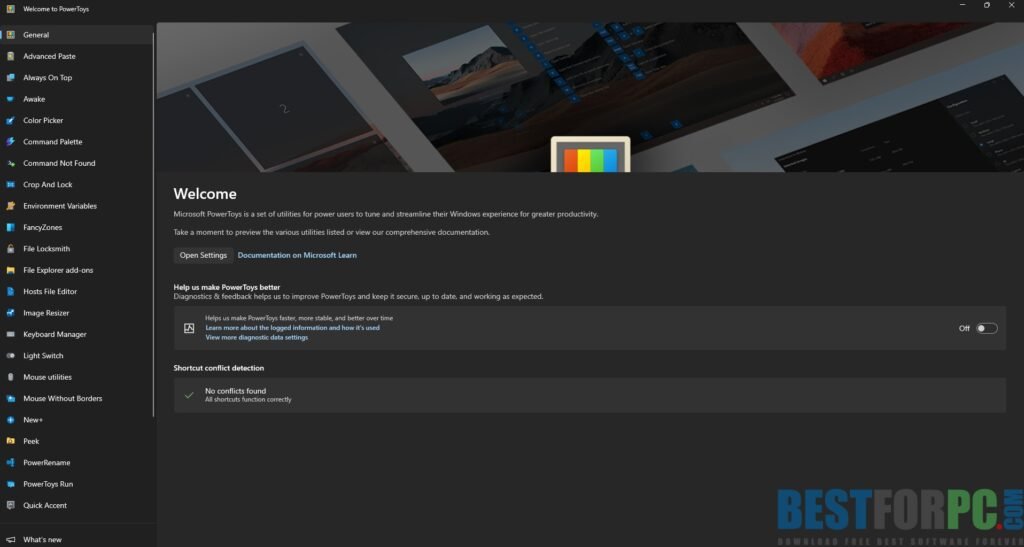
Once opened, you see a clean control panel listing all available utilities. Each feature can be turned on or off individually, so you only use what you need.
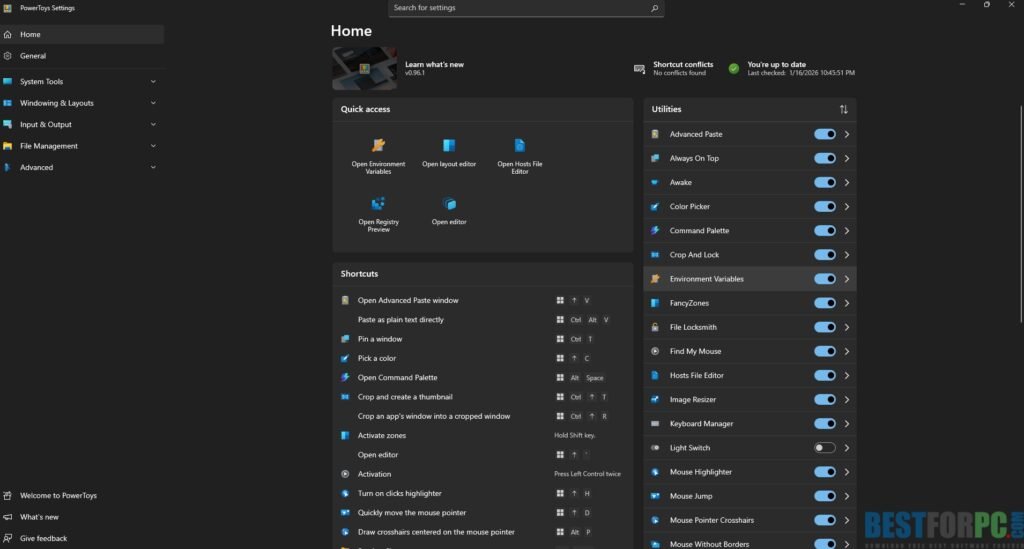
Core Features of PowerToys 2026
Below is a full breakdown of the most useful PowerToys 2026 features, explained clearly for beginners.
FancyZones – Advanced Window Management
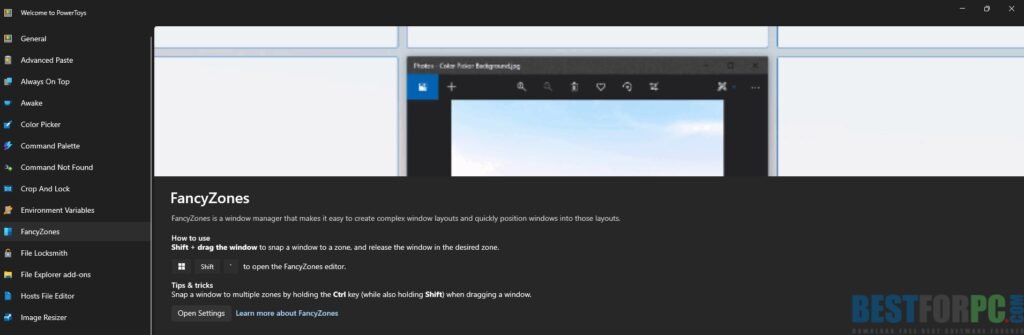
FancyZones is one of the most popular PowerToys features,
It allows you to create custom window layouts on your screen,
Instead of snapping windows to halves or quarters, you can design complex grids and drop apps exactly where you want them.
Why is it useful?
Perfect for multitasking, Ideal for large monitors and ultrawide screens, saves time when arranging apps repeatedly For example, you can place a browser on the left, a code editor in the center, and a chat app on the right with one drag.
PowerRename – Bulk File Renaming Made Easy
PowerRename lets you rename multiple files at once with search and replace rules.
You can Rename hundreds of files instantly, Use regular expressions if needed, Preview changes before applying them.
This is useful for photographers, video editors, students, and office users who work with many files daily.
Keyboard Manager – Remap Keys and Shortcuts
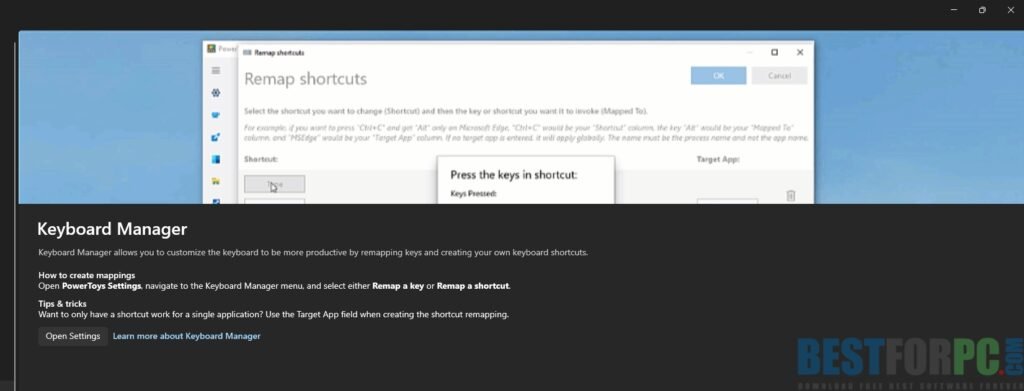
Keyboard Manager lets you change how your keyboard works.
You can:
- Remap one key to another
- Disable unwanted keys
- Create custom shortcuts
For example, you can turn Caps Lock into Ctrl or create shortcuts for actions you use often. This is great for laptops with limited keyboards.
PowerToys Run – Fast App and File Launcher
PowerToys Run is a lightweight launcher you open with a keyboard shortcut.
You can:
- Launch apps
- Search for files and folders
- Perform calculations
- Run system commands
It is faster and more flexible than the default Windows search.
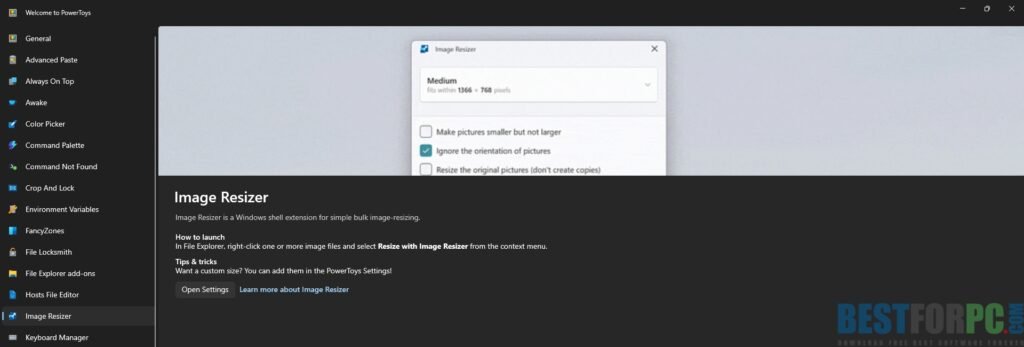
Image Resizer – Resize Images in Seconds
Image Resize Image Resizer adds a right-click option to resize images. Resize photos without opening an editor.
- Choose predefined sizes
- Keep original files intact
This is ideal for bloggers, website owners, and social media managers. actor – Copy Text from Anywhere
Text Extractors lets you copy text from images or videos displayed on your screen. Type it, select the area, and the text is copied to your clipboard.
This saves time when working with screenshots, PDFs, or locked content. Top – Keep Important Windows Visible
This feature lets you pin any window, so it stays above other windows. ching tutorials while working
- Monitoring chats or dashboards
- Keeping notes visible
- A simple shortcut activates it instantly. d-Ons – Better File Previews.
PowerToys 2026 Windows Utilities – Advanced Productivity Tools
PowerToys improves File Explorer by adding previews for extra file types.
- SVG files
- Markdown files
- Code files
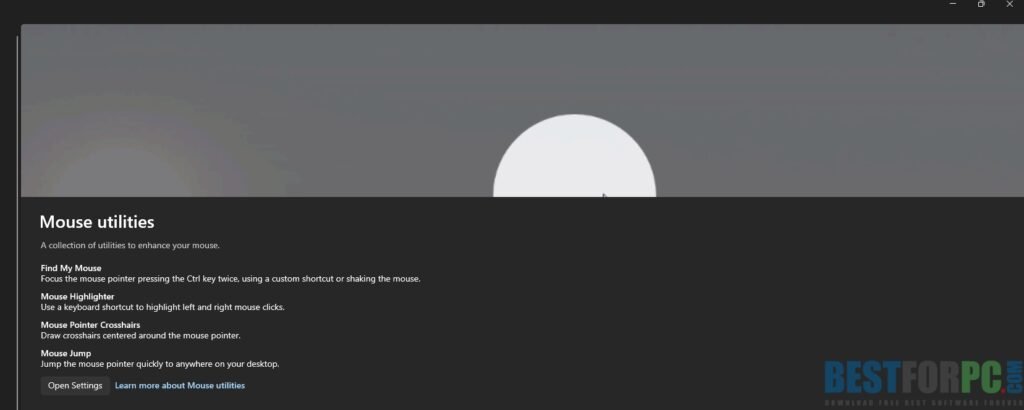
This helps developers and designers work faster without opening other apps. Utilities – Better Cursor Control
Mouse utilities include tools like:
- Mouse highlighter
- Find My Mouse
- Crosshair overlay
These are helpful for presentations, screen recording, teaching and Advanced Tools.
PowerToys 2026 also includes advanced utilities for experienced users, such as:
- Registry Preview
- Environment Variables editor
- Hosts file editor
Even these tooThese tools are designed with safety and clarity in mind.nd System Impact
One common concern is whether PowerToys slows down Windows. PowerToys 2026 is optimized to use minimal system resources. background processes
- Tools only run when enabled.
- No notice. No performance drops on modern PCs. You can turn off startup launch if you prefer manual control—compatibility and System Requirements.
PowerToys 2026 works best on:
- Windows 10 (latest versions)
- Windows 11
- Basic requirements include:
- 64-bit processor
- At least 4 GB RAM
- Administrator access for installation
PowerToys and Privacy
Since PowerToys is developed by Microsoft and is open source, it is considered safe and transparent. It does not include ads, hidden tracking, or bundled software. All settings stay on your local machine points:
- No ads
- No hidden tracking
- No bundled software
All settings remain on your local machine.
Pros and Cons of PowerToys 2026
Pros
- Free and official
- Highly customizable
- Beginner-friendly interface
- Powerful productivity tools
- Regular updates
Cons
- Some tools may overwhelm beginners’ learning shortcuts for best use
- Windows only
Who Should Use PowerToys 2026?
PowerToys 2026 is ideal for:
- Students
- Office workers
- Developers
- Designers
- Content creators
- Anyone who uses Windows daily
Even casual users can benefit from one or two features. Erdict PowerToys 2026 for Windows is one of the best free productivity tools available today. Power toys naturally extension of Windows rather than a third-party add-on. Every feature is designed to solve real problems without unnecessary complexity. If you want more control, better multitasking, and more intelligent workflows on your Windows PC, PowerToys 2026 is worth installing.